Packs
A pack is a group of ready-to-use automations, with a few settings to fill in on a form. You never have to open the canvas if you do not want to.
What a pack is
A pack holds one or more automations, settings (a delay, a text, a team, a list of weapons…), and sometimes shared memories, views and test scenarios. You install it by filling in a form.
- Simple to tune: you change a number or a text, not a diagram.
- Schedulable: active at certain hours only.
- Up to date: when a new version exists, you apply it in one click.
- Shareable: by file or through the library (see “Build your own pack”).
Install an official example, step by step
- Open Packs in the menu. At the bottom of the page, the Official examples section only shows packs (the Automations page also shows templates).
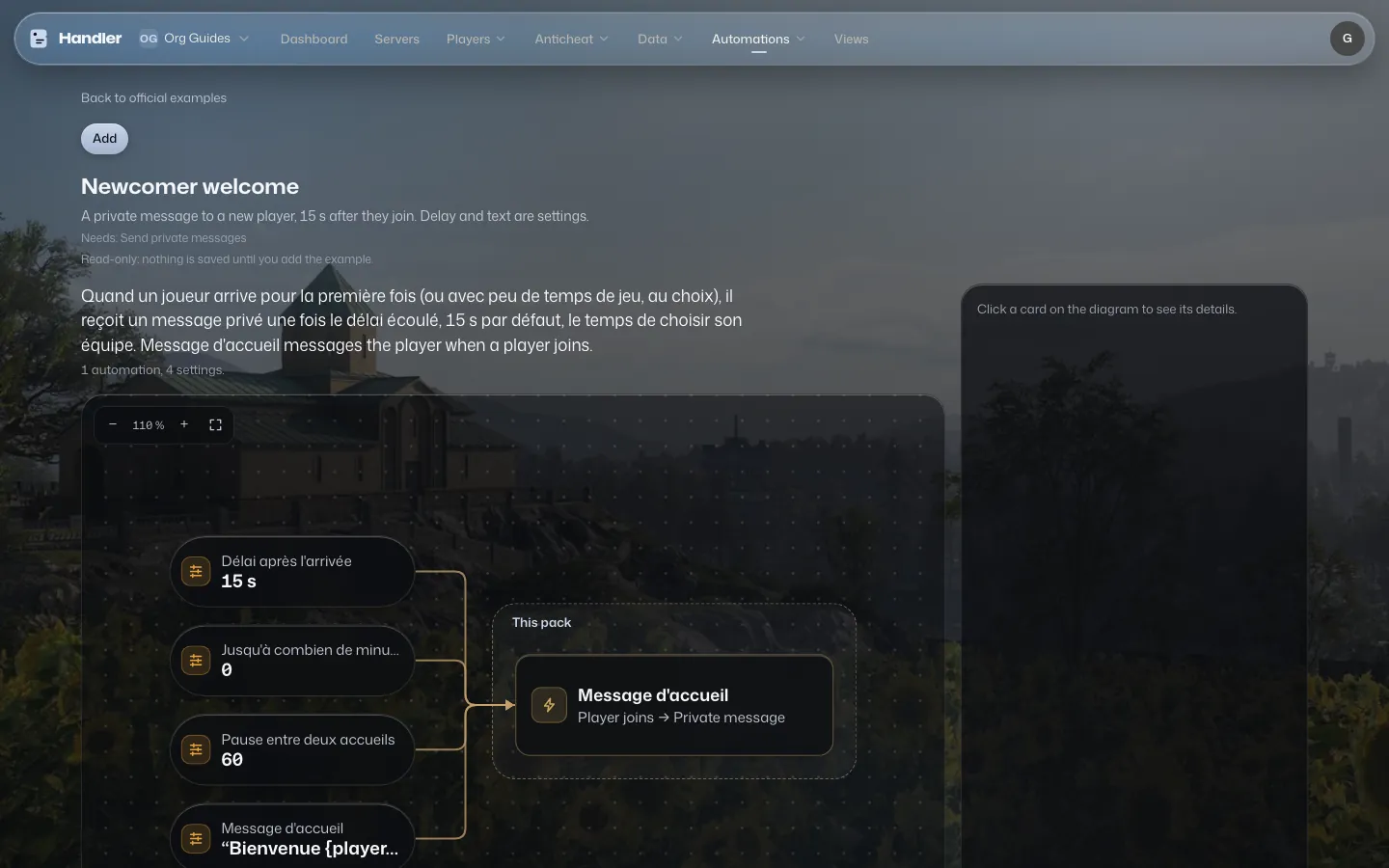
- Pick a card, for example Newcomer welcome (Welcome category). The card shows the number of settings, the test scenarios and the permissions needed (“Needs: …”).
- Click Preview to discover it read-only: the diagram, the Settings with their default value, and the Test scenarios. Nothing is saved.
- Click Add. The pack joins your My packs list (“… was added to your packs.”). It is not installed yet.
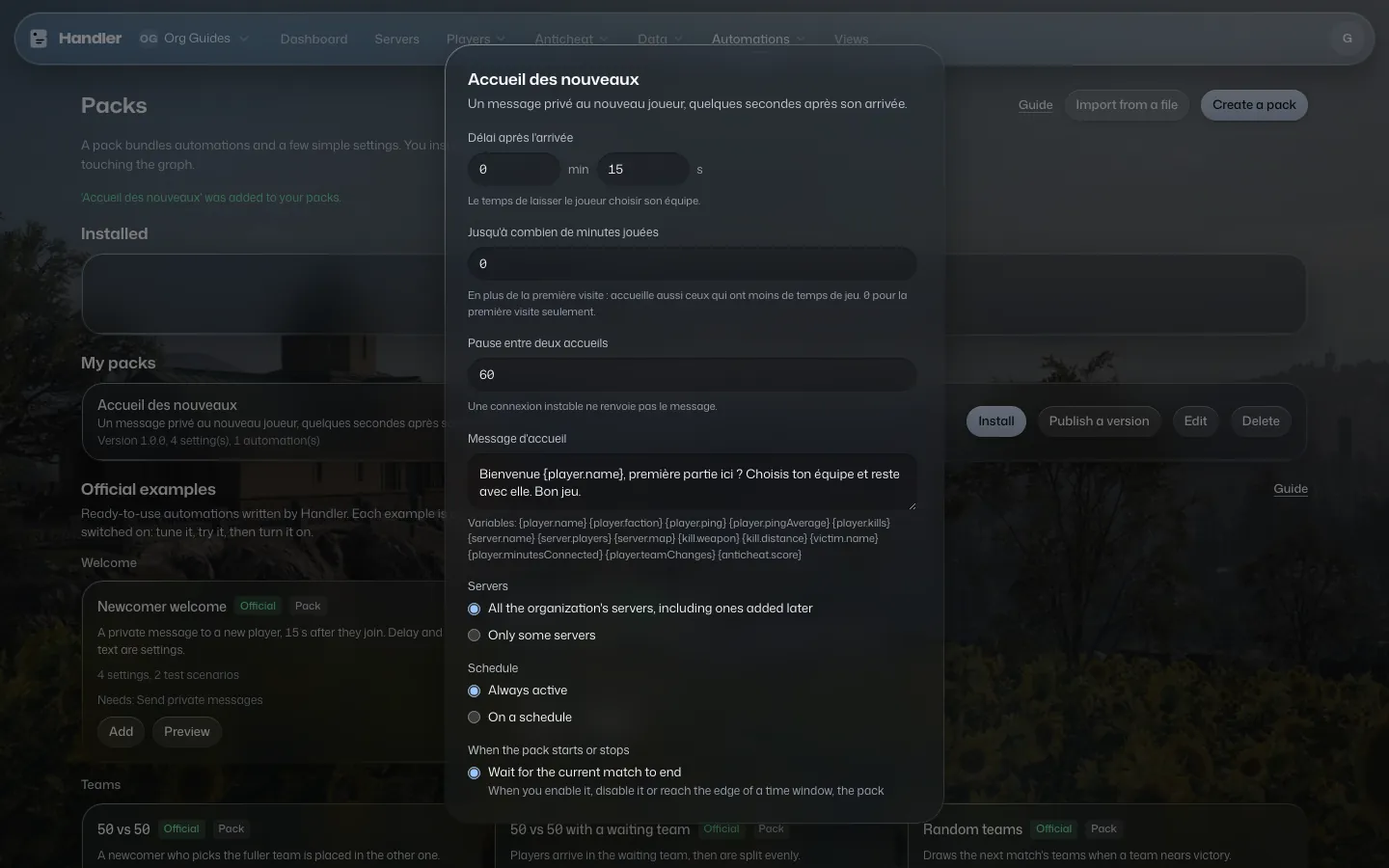
- In My packs, click Install. A window opens with the pack's settings, here the delay after arrival, the welcome message, etc.
- Fill in the settings, or keep the default values.
- Under Servers, keep All the organization's servers, including ones added later, or pick Only some servers and switch on the servers you want.
- Choose Always active or On a schedule (see below).
- Under When the pack starts or stops, keep Wait for the current match to end (the pack does not cut a game in progress), or pick Switch right away.
- Click Activate.
After the installation
The pack shows up under Installed with its version, its servers and its state (Active or Inactive). Its automations also show up in Automations, with the Pack badge. They are tuned from the Packs page: “Managed by a pack: change its settings from the Packs page.”
- The Active switch pauses the pack or restarts it.
- Settings reopens the form: change a setting, a server or a schedule, then Save.
- Memory shows what the pack keeps.
- Uninstall deletes the automations it manages (a confirmation is asked).
- Detach, from the editor of one of its automations, frees it from the pack: you can edit it freely, but the pack will no longer update it.
The schedule: active only when needed
Under Schedule, pick On a schedule. Then:
- Set the Time zone.
- In a window, pick the Days and the hours From and to.
- If the end is before the start, the window goes past midnight: “This window ends the next day.”
- Add more windows with Add a time window if needed.
Outside the windows, the pack's row shows Paused until…. Inside, it shows Active until…. By default, the pack switches between two matches: you will see “Starts next match” or “Stops after the current match”.
Updates
- When your pack has a newer version, the installed row offers Upgrade to v…. Handler asks for confirmation: the pack's automations are replaced by those of the new version.
- For a pack taken from the library, My packs shows “New version … in the library” and an Update button. Careful: your local changes to the pack are replaced.
- If moderation removes a pack from the library, a message says so on the installed row, with the reason. Check what it does and disable it if needed.
Per-server settings
One pack can be tuned differently on one server: for example other banned weapons on your hardcore server. You keep a single installation, the same automations and the same memory.
- In the installed pack's settings, each parameter keeps its shared value. Under a parameter, Per server lets you pick one of the pack's servers, then its own value.
- Only the parameters you change are customized: everything else follows the shared value. The summary "2 customized servers" shows at the top and on the pack's row.
- Reset puts a server back on the shared value.
- When an automation runs, it uses the values of the server where the event happens. A task scheduled once for the whole organization uses the shared values.
- To try it: in the pack's scenarios, pick a customized server's Values before running the test.
- On an update, your per-server settings carry over as long as the parameter still exists. Those that can't are listed before you confirm.
- A pack shared as a file never contains your per-server settings: they belong to your servers.