Data in your messages
“Welcome” is polite. “Welcome Wolf” is better. Here you learn to drop game information into your texts, and to make an automation remember things.
What is a piece of data?
A piece of data is information available at one point of the automation: the player's name, their ping, the weapon of a kill, the server's map… What is available depends on the trigger. With Player joins, you have the player and the server. With Kill, you also get the weapon, the distance and the victim.
Each piece of data has a type: number, text or yes/no. The type is used to offer the right operators in a condition.
The data picker
In the editor you never type curly braces by hand. You click and choose.
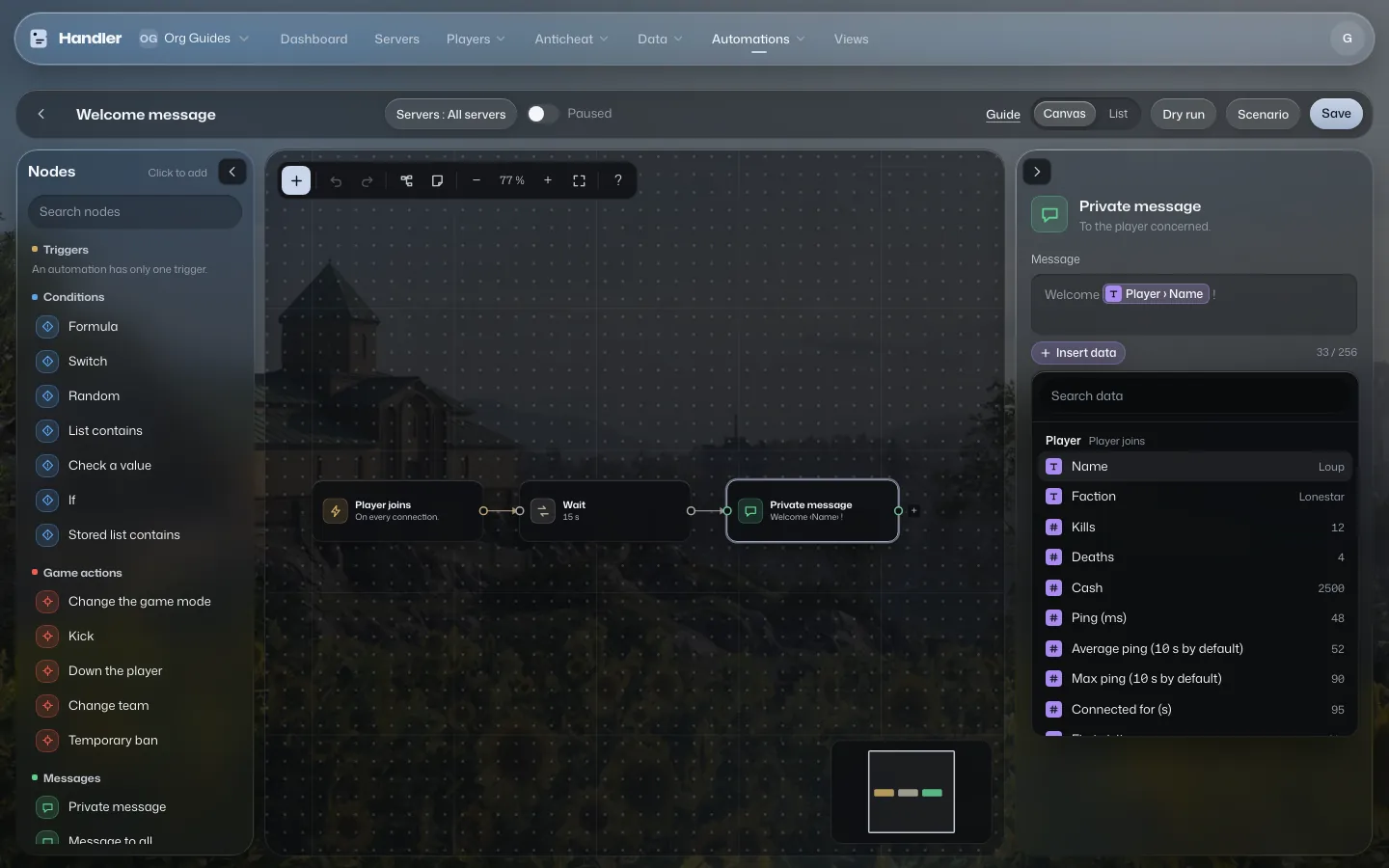
- Click a card to open its settings on the right, for example Private message.
- Put the cursor in the Message field, where you want the data.
- Click Insert data. The Available data window opens.
- Type a word in Search data (“name”, “weapon”…) or browse the groups: Player, Server, Kill, Victim, Team…
- Click the data. It appears in your text as a chip, for example Player › Name.
- A piece of data can be flagged Not always present, or Read from history: the tooltip tells you.
- If you move or delete the step that provided the data, the chip turns red (“Not available here”) and saving is blocked until you fix it.
- Missing data makes a condition false, unless you pick the operator is missing.
Message examples
| Trigger | Text (chips are shown in square brackets) |
|---|---|
| Player joins | Welcome [Player › Name] to [Server › Name]! We are [Server › Connected players] tonight. |
| Player joins | Map of the day: [Server › Map]. Pick your team and stay with it. |
| Kill | [Player › Name] downs [Victim › Name] with [Kill › Weapon], from [Kill › Distance (m)] m. |
In a pack: tokens in curly braces
When you install a pack, Message fields have no picker. You type tokens in curly braces directly, and the list of allowed tokens is shown under the field (“Variables: …”).
| Token | Gives |
|---|---|
{player.name} | The player's name |
{player.faction} | Their team |
{player.ping} and {player.pingAverage} | Their ping, and their average ping |
{player.kills} | Their kills |
{player.minutesConnected} | How many minutes they have been connected |
{player.teamChanges} | How many times they changed team during the match |
{server.name}, {server.players}, {server.map} | The server name, the number of players, the map |
{kill.weapon} and {kill.distance} | The weapon and the distance of a kill |
{victim.name} | The name of the victim of a kill |
{anticheat.score} | The anticheat score, when the trigger comes from it |
Memory: counters, lists, tables
Without memory, an automation forgets everything at the end of each run. With it, it can count a player's infractions, remember who it already welcomed or keep a drawn team.
A simple counter
Two steps are enough. Remember a value keeps or changes a number: pick Where to remember it (for example Player, for the match), a Name (“infractions”), the Action add and the Value 1. Check a value then asks the question: same Name, Condition at least, Value 3. The yes output fires when the counter reaches 3.
This is exactly what the official Banned weapons pack does: it adds 1 per infraction, then kicks from the 4th and bans from the 6th, by default.
The fuller memory
The steps in the Data and memory category go further. Each one asks Who owns the memory: A player, on this server, A player, everywhere, This server, The whole organization, or The pack (or the automation alone). Then a Memory name, and for writes a Keep for duration: until the end of this match, of the next match, a number of matches, hours or days, or forever.
- Write to memory and Read memory: one value (set, add, delete). Read memory has two outputs, found and missing.
- Add to a stored list, Stored list contains, Remove from a stored list, Count a stored list: a list of players or texts. For example, the players already warned.
- Set in a table and Read from a table: one value per key, often a SteamID (SteamID → team, for example).
- Clear memory: erase everything for its owner.
A value read from memory can be inserted into a message with Insert data, under the name of the step that read it.
Seeing and fixing what is stored
- In the editor, the Memory panel lists what this automation keeps, with the owner, the key, the value and the end.
- On the Automations page, the Memory button opens all of the organization's memory, with filters (owner, automation, key).
- On the Packs page, each installed pack has its own Memory button.