Test safely
You never need to try things live on your players. Handler gives you three tools to check an automation before activating it, and a log to understand what happened afterwards.
Everything starts paused
An automation that is created, copied from an example, imported from a file or added from a pack does not act on its own. It is Paused until you flip Active. You have time to set it up and try it.
The dry run: the 10-second test
The dry run replays the automation with a made-up player, sending nothing to the game. Waits are skipped and rate limits pass: you see the path followed right away.
- In the editor's top bar, click Dry run.
- Under Test player, set the name, ping, kills, faction or First visit to match the case you want to test.
- Click Try it.
- Look at the canvas: the cards crossed show their number of passes and their result (Passed, Sent, Skipped, True, False…). The wires used light up.
When a wait was skipped, the summary says so: “1 wait(s) skipped”. The dry run therefore does not measure durations. For that, use the simulator.
The scenario simulator: a made-up match
The simulator plays a small story (players, events over time) against your automation, in the real engine, with a clock that moves forward: Wait steps fire at their time.
- Click Scenario in the top bar. The Scenario simulator panel opens under the canvas.
- Under Players, click Add a player, then set their name and team. Tick First visit if needed.
- Under Timeline, pick an Event type (for example Join), then click Add an event. Set its Time (m:ss format, for example 0:00).
- Under Expectations, click Add an expectation, type Action sent, action Private message, At least 1. This is what you want to see happen.
- Check Time after the last event (s): it must exceed your Wait (here 15 s) so the message has time to go out. It is 60 s by default.
- Click Run the scenario.
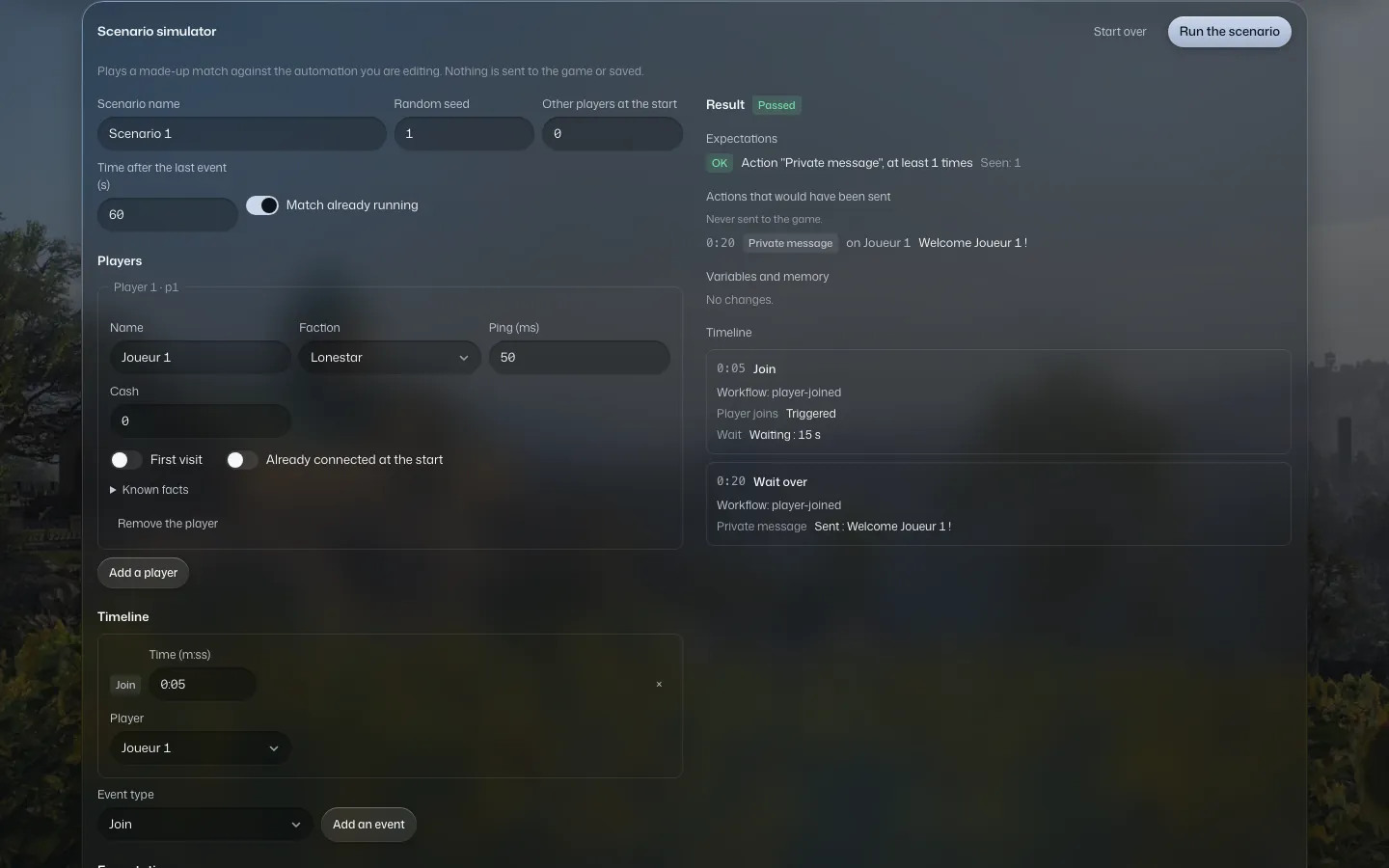
- Passed or Failed: are all your expectations met?
- Timeline: what happened, moment by moment.
- Actions that would have been sent: the simulated messages, kicks or bans. “Never sent to the game.”
- Variables and memory: what the automation would have remembered.
The run log: what really happened
Once the automation is active, the Log at the bottom of the editor lists every run, newest first. Click Refresh for the latest, Older runs to go back.
| State | What it means |
|---|---|
| Running | The run is going on right now. |
| Waiting | It is waiting on a Wait step, or on a timer. |
| Done | It went all the way down its path. |
| Failed | A step could not run. The Step failed tag points it out. |
| Skipped | The run stopped without an error: for example, the player left during the wait, or the automation was paused in the meantime. |
The Show on the canvas button of a row replays the run on the diagram: you see the path taken and the values read, exactly like in a dry run.
Reading a failure, step by step
- Open the Failed row in the Log, then click Show on the canvas.
- Find the card marked as failed: it is the first step that got stuck. The cards before it ran normally.
- Read the result under the card. Missing data, a player who just left the server or an unreachable server can, for example, make a step fail.
- Fix the automation, run a dry run or a scenario again, then save.