Your first automation, step by step
We will send a welcome message 15 seconds after a new player joins. Two paths: copy the official example, or build everything yourself. Both end the same way.
What we are building
Why 15 seconds? It gives the player time to pick a team. A message that arrives too early gets lost in the selection screen.
You need a server already linked to your organization, and a role that lets you manage automations. If a step refuses you, see the “Troubleshooting” guide.
Path 1: start from the official example
- In the menu, open Automations.
- Scroll down to the Official examples section, Welcome category.
- Find the Welcome newcomers card (with the Official badge). Click Preview to look at it read-only: nothing is saved.
- Click Use. The editor opens on a copy: Player joins, If, Wait 15 s, Private message, Message to all.
- Click the Private message card. On the right, in Node settings, change the text of the Message field.
- At the top, name the automation, then pick servers with the Servers: All servers button.
- Click Save. You see “Automation saved.” and the switch stays on Paused.
Do not activate it yet: go through the “Test safely” guide first. When you are ready, flip the switch to Active, then click Save again.
Path 2: build everything from scratch
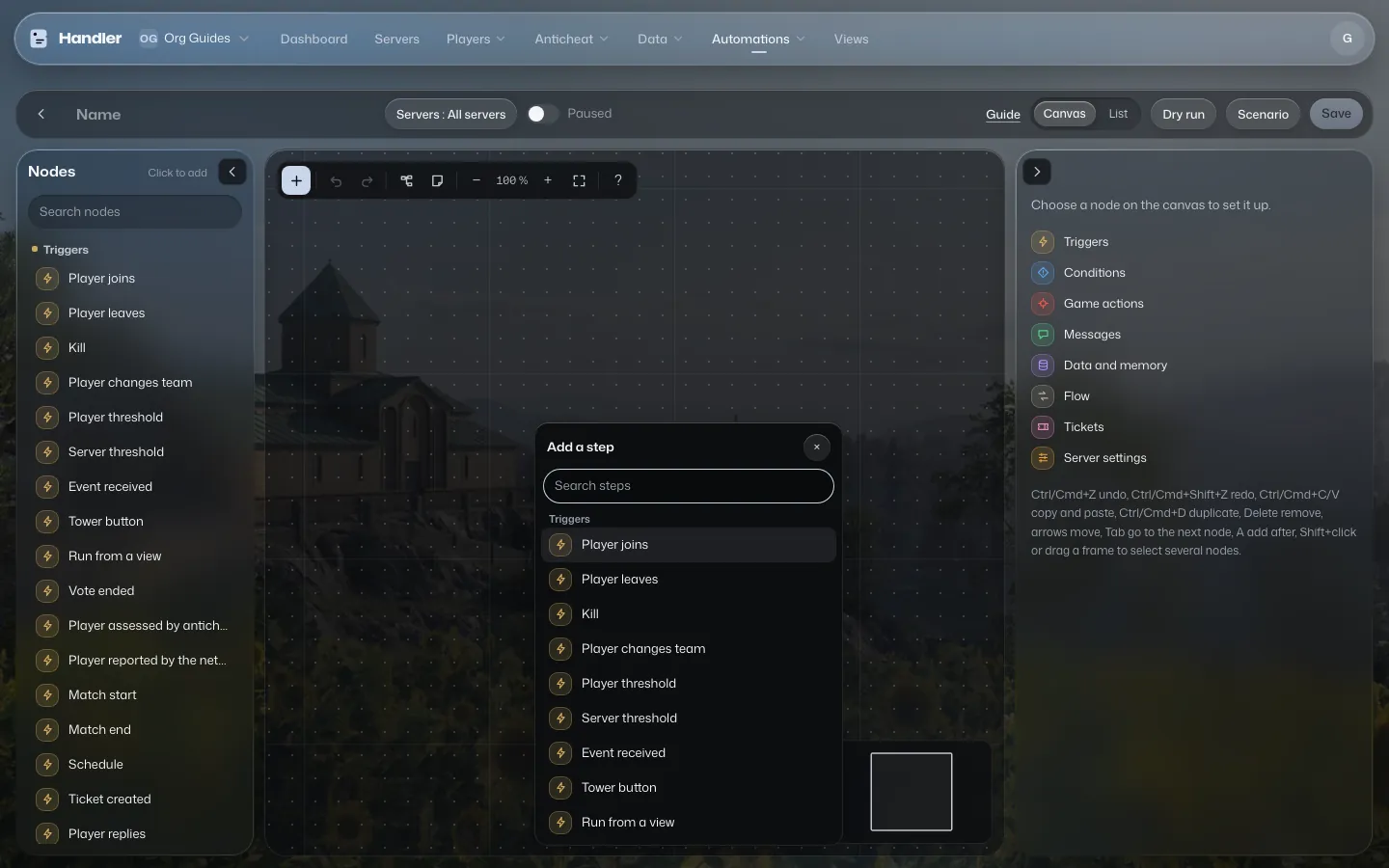
- In Automations, click Start from scratch. An empty canvas opens: “An automation starts with a trigger: what sets it off.”
- At the top left, type a name, for example “Welcome”.
- Click Choose a trigger, then Player joins (“On every connection.”). A first card appears.
- On the card, the output has a +. Click it: the Add a step window offers Suggestions. Pick Player condition (or type “If” in Search steps).
- In the right panel, under Conditions, click Choose data, pick First visit, then the operator is true. Only new players will get through.
- The If card has two outputs. Click the + of the true output, search for Wait, then set Duration (seconds) to 15.
- Click the + of the Wait card, pick Private message, then write your text in the Message field.
- To drop the player's name into it, click Insert data under the field and pick Player › Name (details in the “Data in your messages” guide).
- If a To fix before saving box appears under the canvas, read it: it says which card has a problem. A red dot also marks the card.
- Pick your servers with Servers: All servers, then click Save.
When everything is ready: activate it
- Flip the Active switch in the top bar.
- Click Save.
- In the Automations list, the row shows Active and, once a player has joined, the date of the last run.
- To put it to sleep, flip the switch back to Paused and save. Nothing is deleted.
Every run is recorded in the Log, at the bottom of the editor. That is where you check that a real player received their message.
Going further
- Add a Message to all step so the server welcomes the newcomer.
- Add a Rate limit so an unstable connection does not resend the message in a loop.
- When you want the same rule with simple settings to fill in, see the “Packs” guide.